Your first visit.
A clear next step.
From creating your account to finding PTE and IELTS practice, registering for a course and checking your results — follow the steps at your own pace.
Just registered? Start here.
- 1Open Student Home.
- 2Choose PTE or IELTS.
- 3Choose a skill, then an available practice task.
Looking for a course instead? Browse course registrations → Course registrations and practice credits are separate.
10 chapters to explore
Screen examples show the website layout without personal student data. Your account records, available tests and seasonal colours may look different. Select a screenshot to see the larger image.
Create your account and sign in
Your account keeps your registrations and saved practice history together.
- 1
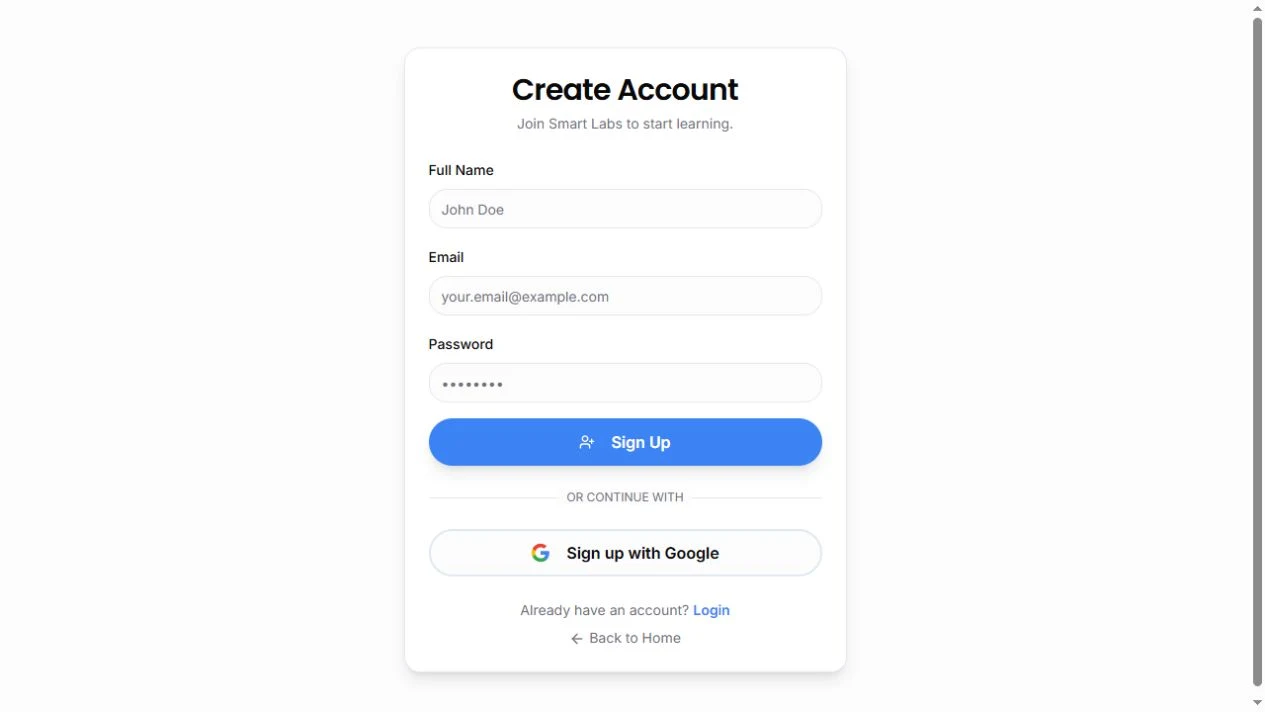
Open Create Account. Enter your full name, email and a password, then choose Sign Up. You can also use Sign up with Google.
- 2
Already registered? Choose Login and use the same email or Google account you used before.
- 3
Open Student Home after signing in. If a registration page asked you to sign in, return to that page to finish your registration.
Find your way around Student Home
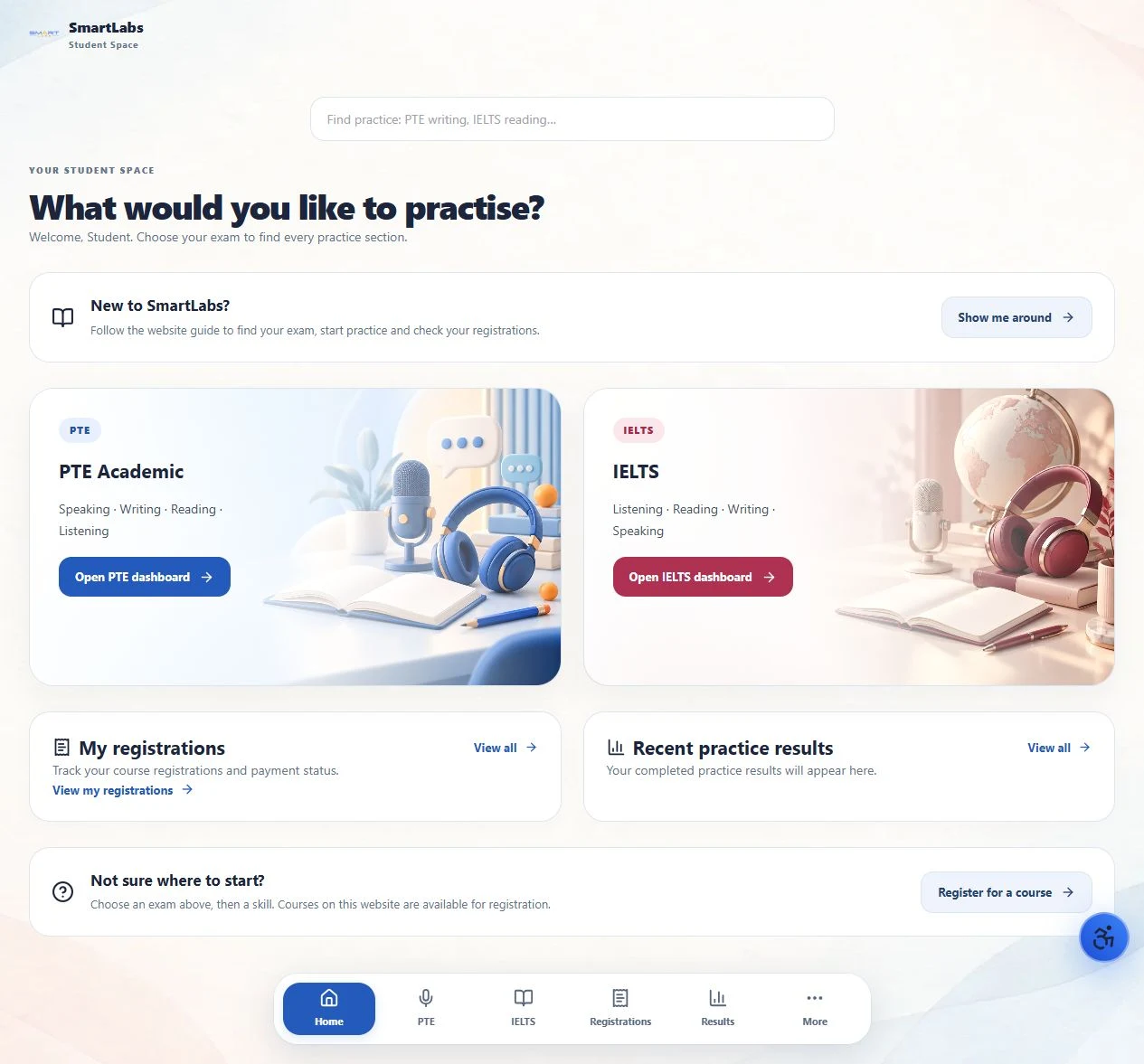
Start with your exam. PTE Academic and IELTS have separate dashboards.
- 1
Choose the PTE Academic card or the IELTS card. Each opens that exam’s own skills and practice options.
- 2
Use the centered search bar for a task or skill, such as “PTE dictation” or “IELTS writing”. Select a result and check the exam name shown below it.
- 3
The floating bottom menu stays within reach: Home, PTE, IELTS, Registrations, Results and More. The highlighted item shows your current area.
- 4
Scroll below the exam choices to see Your credits. AI scoring, PTE mocks and IELTS mocks have separate balances, which update after a purchase is confirmed.
- 5
Choose More for the website guide, Help, Settings and Sign out. Inside an exam dashboard, More also includes that exam’s skill links.
Start PTE Academic practice
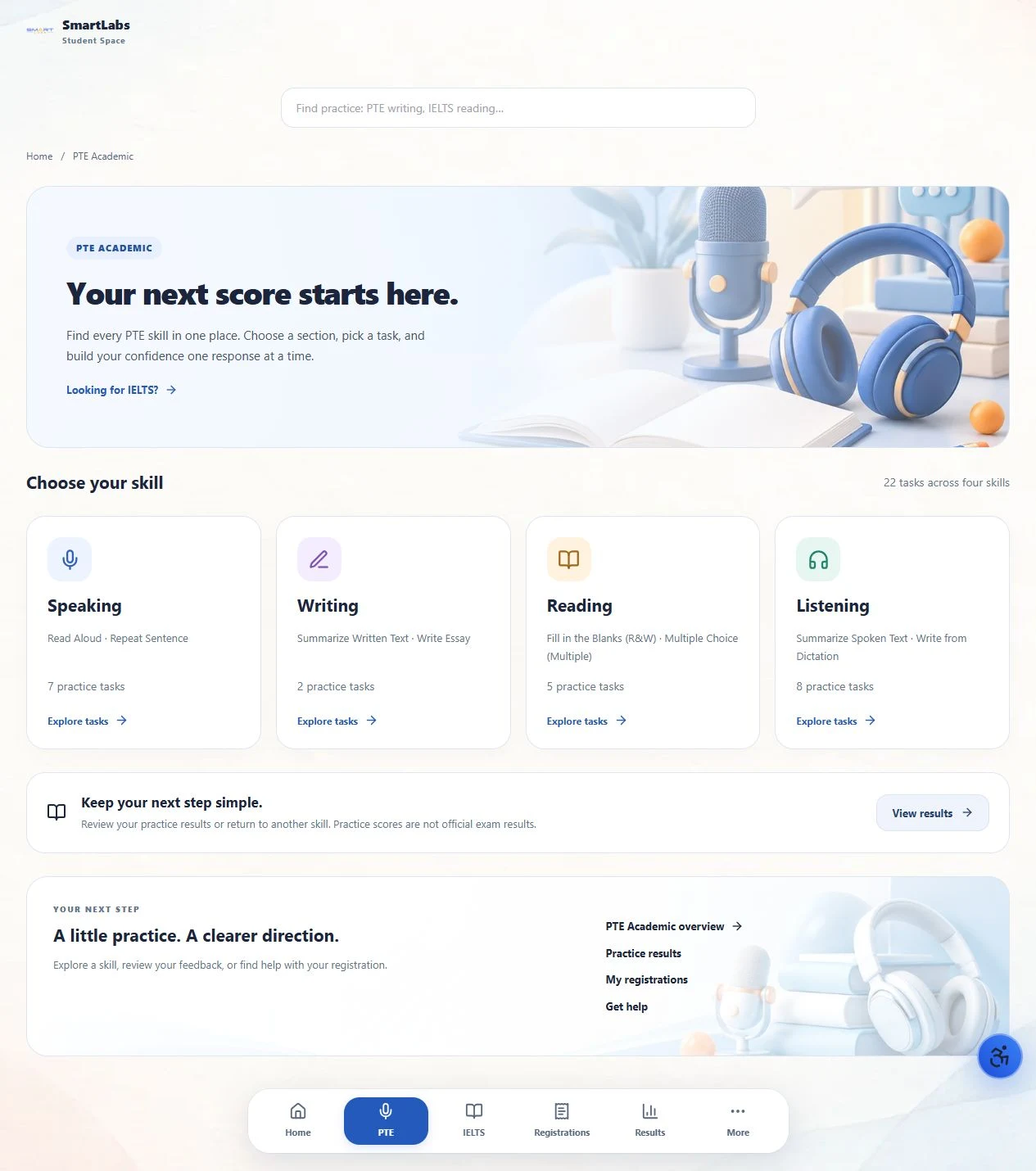
PTE tasks are organised into Speaking, Writing, Reading and Listening.
- 1
Choose PTE in the bottom menu, or open the PTE Academic card on Student Home.
- 2
Choose a skill to see the full task names. For example, Writing contains Summarize Written Text and Write Essay; Listening includes Write from Dictation.
- 3
Choose Start practice beside the task you want. Some trainers open in their own page design; the practice link still takes you to the correct task.
- 4
Read the task instructions before answering. For speaking tasks, allow microphone access when requested and check your microphone before recording.
- 5
Complete the response, then use the checking or scoring control shown in that trainer. Review the feedback before starting another response. Use the back link to return to the skill page.
Choose your IELTS path and skill
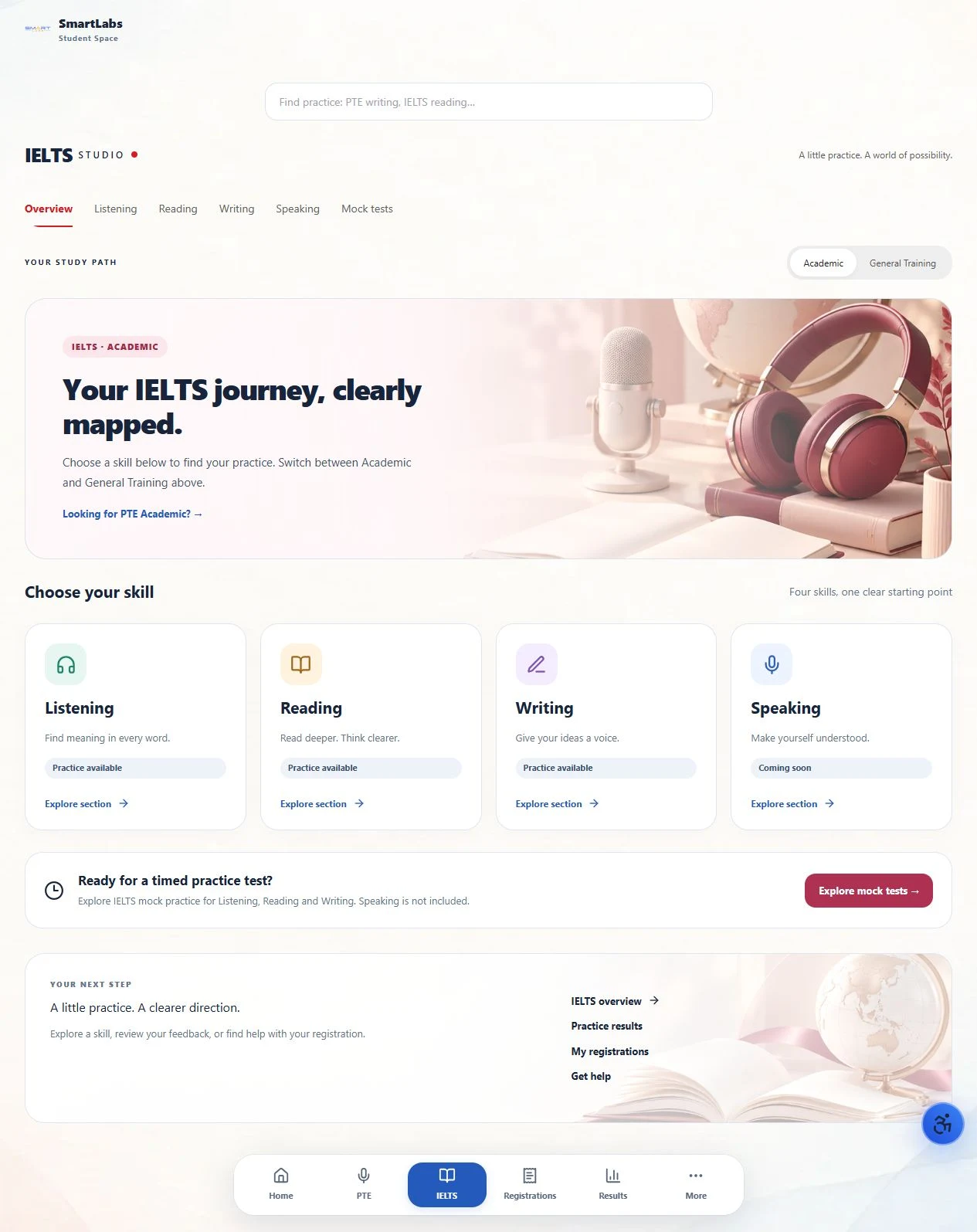
Choose Academic or General Training before selecting a practice section.
- 1
Choose IELTS in the bottom menu, or open the IELTS card on Student Home.
- 2
Use the Academic / General Training switch near the top. Reading and Writing options can differ between these paths.
- 3
Choose Listening, Reading, Writing or Speaking. Open an available collection, expand a Cambridge book where shown, then choose Start practice beside a test.
- 4
For essay practice, open Writing and choose an available Task 2 option. Read the prompt, write your response and use the feedback controls in the trainer.
- 5
If a section says Coming soon, it is not available to practise yet. IELTS Speaking is currently marked Coming soon.
Use IELTS mock tests and credits
The IELTS mock area brings timed Listening, Reading and Writing practice together.
- 1
Open IELTS, then choose Explore mock tests or the Mock tests link.
- 2
Check the available tests and your mock credit balance. If access requires credits, review the package shown under Buy mock credits before deciding whether to purchase.
- 3
Read the test instructions and timing before starting. Follow the controls in the test to move through sections and submit.
- 4
Return to the mock area for its available reports and history. The floating menu is hidden during timed IELTS attempts to leave more room for questions; navigation remains available from More in the header.
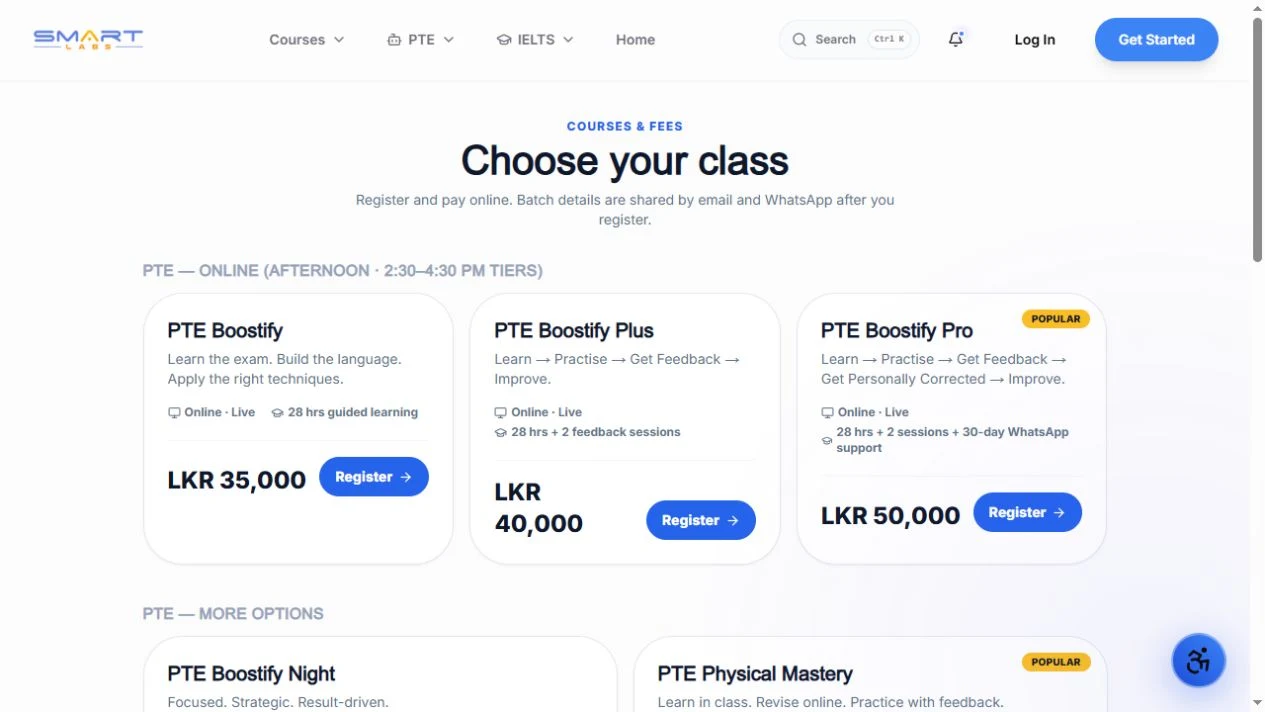
Register for a course
Use this website to register for courses. Student Home is for navigation and practice, not joining live classes.
- 1
Open Courses & Fees and compare the current options. Select Register or Register & pay for the course you want.
- 2
On the registration page, check the selected package, available batch or other options, and the total shown. Sign in if asked.
- 3
Confirm your contact details and review the payment information. Only continue to checkout when you are ready to pay.
- 4
After checkout, follow the confirmation shown on the website. Keep your order or payment reference, then open Registrations in the bottom menu to check the account’s payment status.
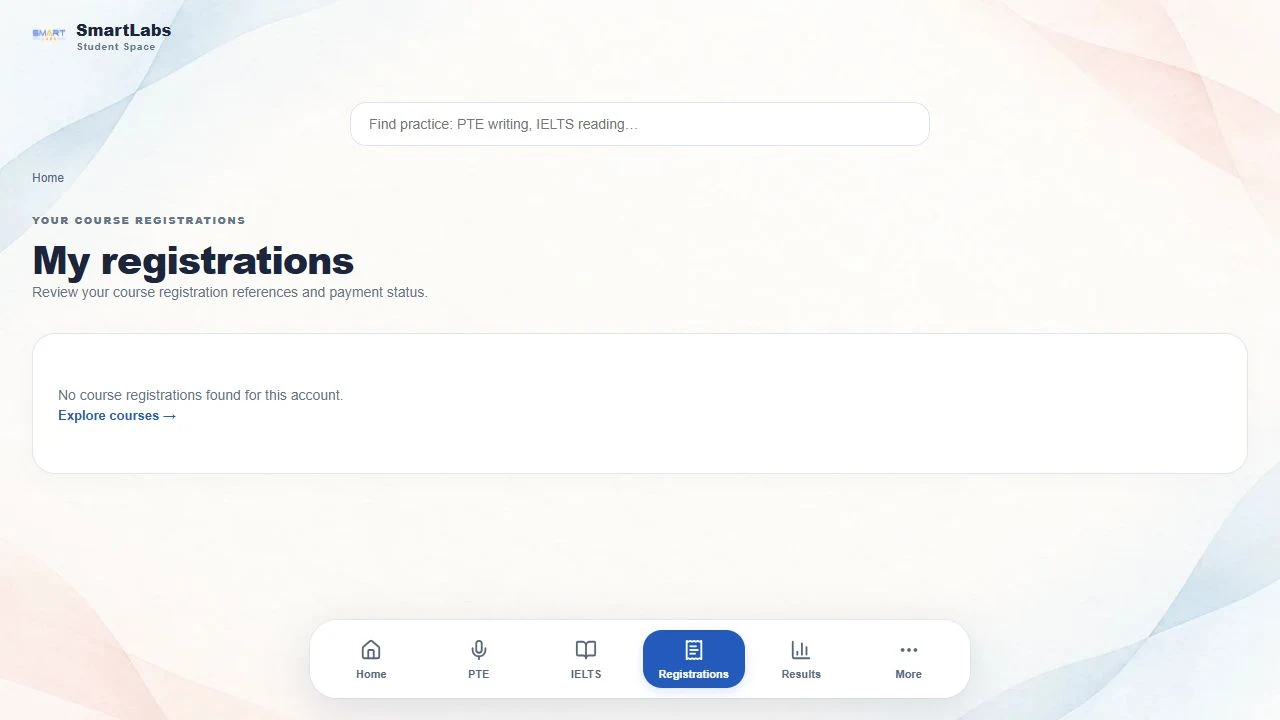
Check a registration or payment
Registrations shows course payment records for the account you are signed into.
- 1
Choose Registrations in the bottom menu, or View all beside My registrations on Student Home.
- 2
Find the course name and check the payment status, amount, date and reference.
- 3
Paid means the payment record is marked successful. Pending means it has not yet been marked paid. Failed, Cancelled or Amount issue need attention.
- 4
If a payment is missing or looks incorrect, check that you used the same account. Contact Help with your order reference and the issue; do not send card details or passwords.
- 5
If records cannot load, choose Try again. An empty list means no records were found for this account; it is different from a loading error.
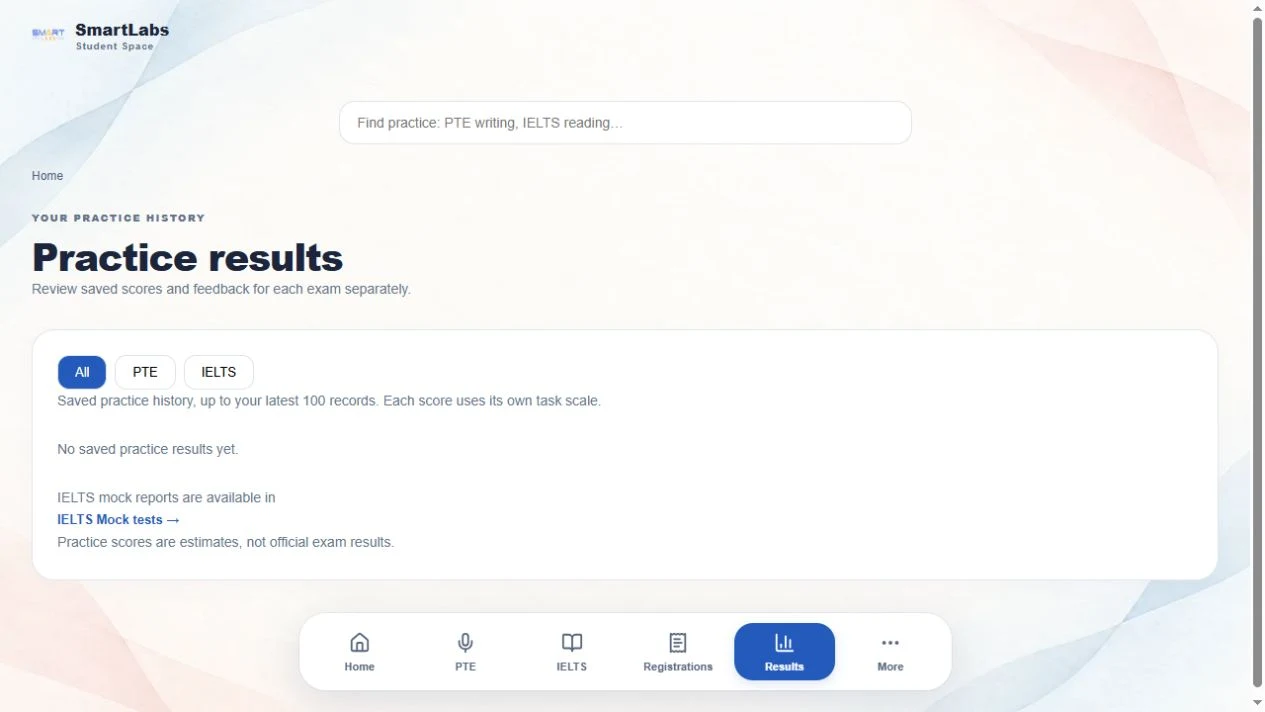
Find your scores and feedback
Results shows saved practice history. Keep PTE and IELTS scores separate.
- 1
Choose Results in the bottom menu, or View all beside Recent practice results on Student Home.
- 2
Use All, PTE or IELTS to filter the saved records. Each record keeps its own score scale; do not compare a score out of 90 with a score out of 9.
- 3
Open Score details when a saved record contains a breakdown. Some tools also show feedback directly in their own practice screen.
- 4
For IELTS mock reports, use the IELTS Mock tests link. Mock reports are separate from the shared practice history.
- 5
If your latest attempt is missing, confirm you completed the trainer’s submission step and used the same account. Not every tool stores its report in the shared Results list.
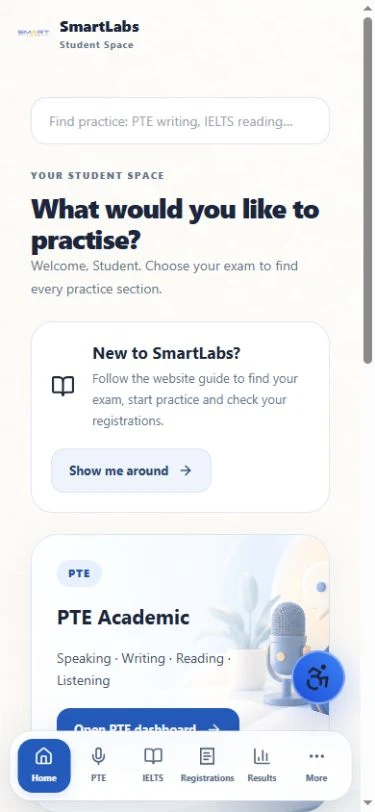
Use the website on your phone
The same floating menu works on a smaller screen.
- 1
Scroll through the page normally; the floating menu remains near the bottom of the screen.
- 2
Tap PTE or IELTS to switch exam dashboards. Tap More to open the guide, Help, Settings and available exam skill links.
- 3
Tap outside More to close it. On a keyboard, Escape closes the panel and returns focus to More.
- 4
If a practice tool asks to open a new tab, return to the original tab when you finish. Avoid closing an active test before following its save or submission instructions.
Get help and manage your account
You can return to this guide at any time from More → Website guide.
- 1
Open More → Help to use the account’s support chat. Type your question and choose Send when you are ready.
- 2
For a useful support request, include the page or task name, what you were trying to do and any error message. Support chat accepts text. If the team asks for a screenshot, use the channel they provide and keep private information out of it.
- 3
Use More → Settings, or the account icon at the top, to view the available profile settings.
- 4
If you cannot sign in, use Reset password for an email/password account, or use the same Google sign-in method you registered with. Contact the team if you still cannot access your account.
- 5
On a shared device, finish your work and choose More → Sign out.